

How to Install ETS2 Mods – Step-by-Step Guide
Many players aren’t sure how to install mods, but it’s actually very easy, follow this simple installation guide.
Step 1: Check Your Game Version
Before downloading any mod, make sure the mod is compatible with your game version. To check your game version, simply launch the game and look at the version number shown in the bottom corner of the main menu. (See image below.)

Step 2: Verify That the Mod Version Matches Your Game Version
After confirming your game version, check the mod’s version as well. For example, if the mod is made for version 1.54, it will only work with game version 1.54. If the versions don’t match, the mod will be incompatible and cannot be activated in the mod manager of game. (See the image below for reference.)

Step 3: Download and Place the Mod File
Open any mod post on our website and click the Download button.
After the file is downloaded:
-
- If the file ends with
.scs, copy it to the"DocumentsEuroTruckSimulator2mod"folder. (See image below).
- If the file ends with
-
- If it’s a
.zipor.rarfile, extract/unpack.scsinto the same folder. (See image below)
- If it’s a
Step 4: Activate the Mod in the Game
-
- Launch Euro Truck Simulator 2.
-
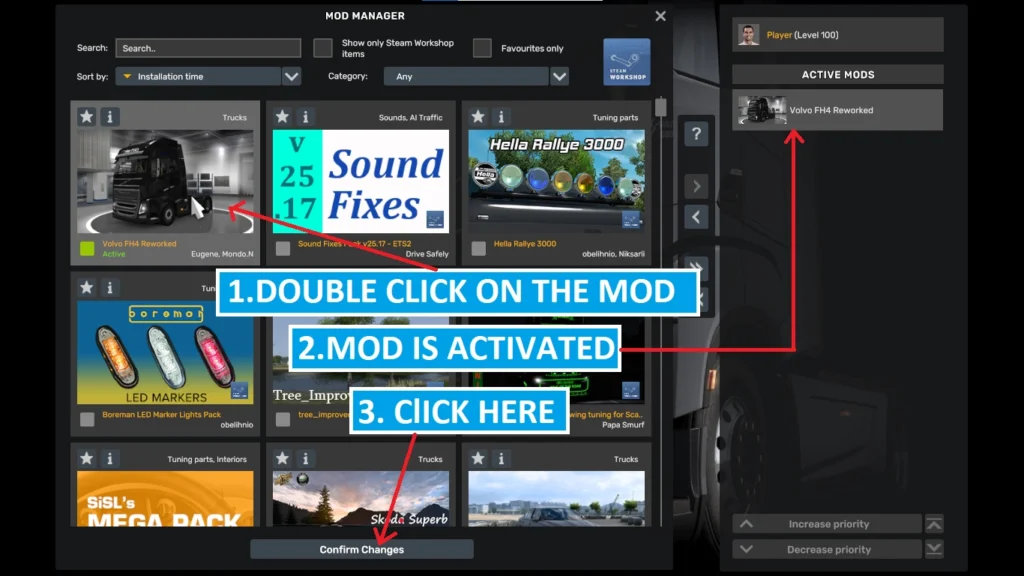
- Open the Mod Manager from the main menu.
-
- You will see your available mods listed.
-
- Double-click on the mod of your choice to move it to the Active Mods tab.
-
- Repeat this for all the mods you want to activate.
Some mods require a specific load order to work correctly. You can adjust the priority by moving mods up or down in the Active Mods list based on the mod creator’s instructions.
Step 5: Apply Changes and Enjoy!
Once you have activated and arranged your mods, click Confirm Changes and start your game with the mods enabled.